How to use it
From a class list to feedback a teacher has checked.
Real screens from the product, step by step. Pick who you are.
- 01
Create a class and hand out codes
Writing assessment → New class. Paste the students, one per line. Each student gets a private 6-character code — they sign in with it, no email or password.
Press New class → Create class → Students & codes
Good to knowTreat codes like passwords. One class serves all four skills.
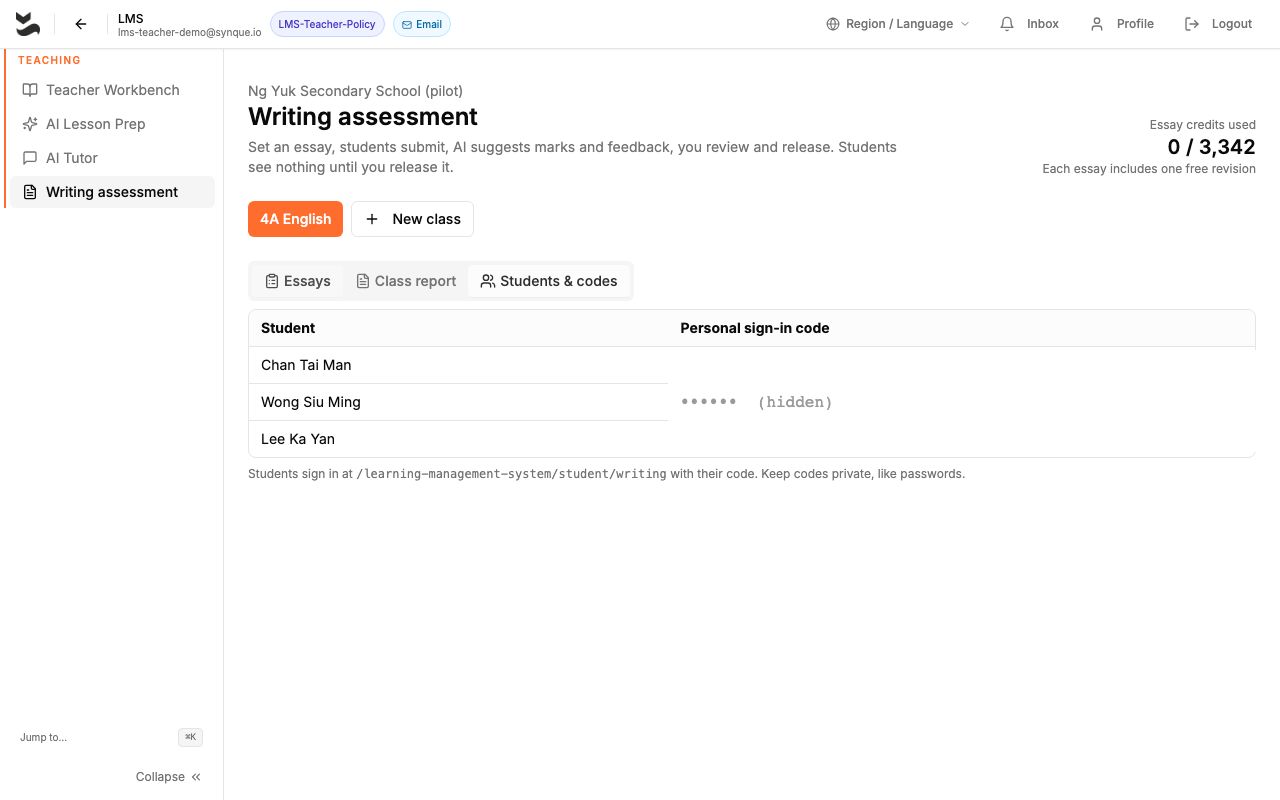
The Students & codes tab: one personal sign-in code per student (hidden here) - 02
Set a task in any of the four skills
Writing: a title, the task and a word limit. Reading: paste a passage and write each question with its marking point. Listening: upload a recording, check the AI’s transcript and confirm it. Speaking: a question and the longest answer.
Press New essay assignment · New reading task · New listening task · New speaking task
Good to knowStudents never see a marking point, or a recording’s transcript, before you release.
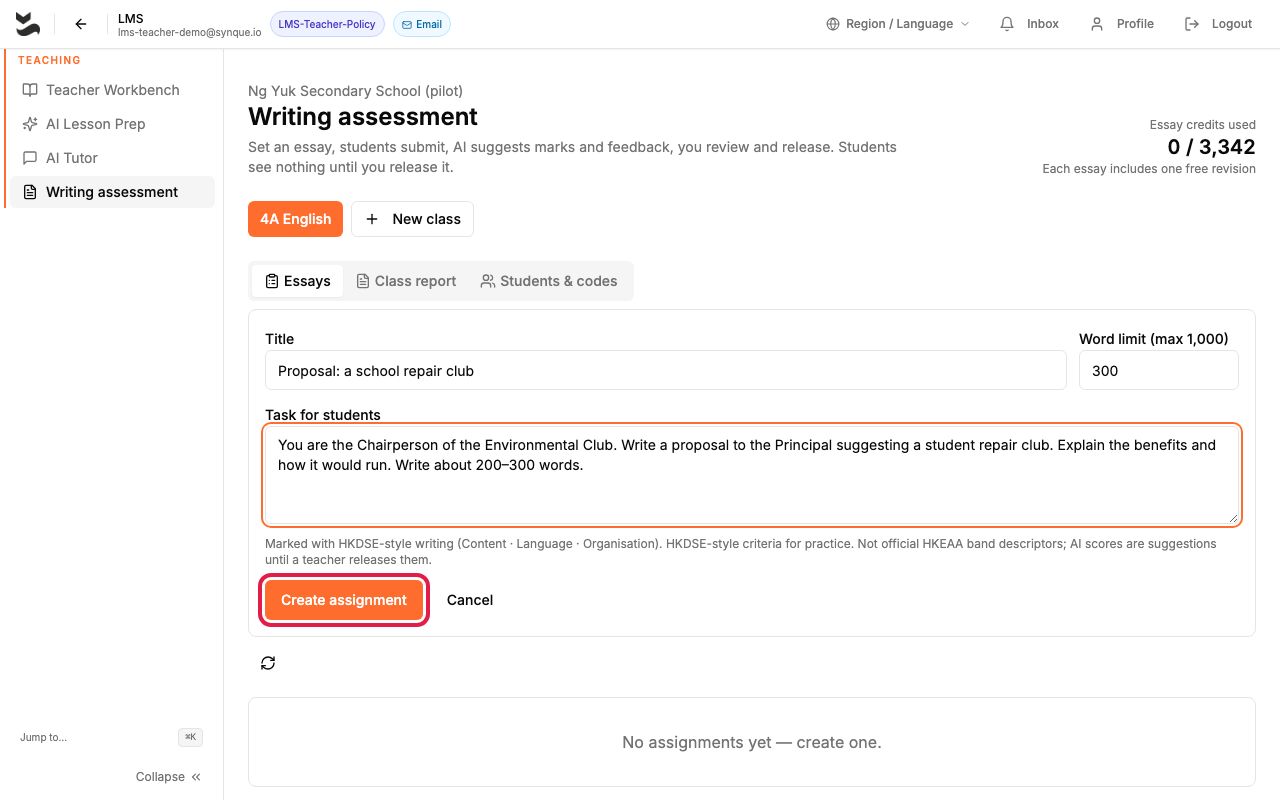
The new essay assignment form - 03
The AI marks — you check the evidence
Within seconds of a student handing in, each mark arrives with the words that justify it: quotes from the essay, the passage line, what was said in the recording. Change any mark.
Press Review · Listen & review
Good to knowA quote the AI cannot back up is withheld and the work is flagged for you — never shown to the student.
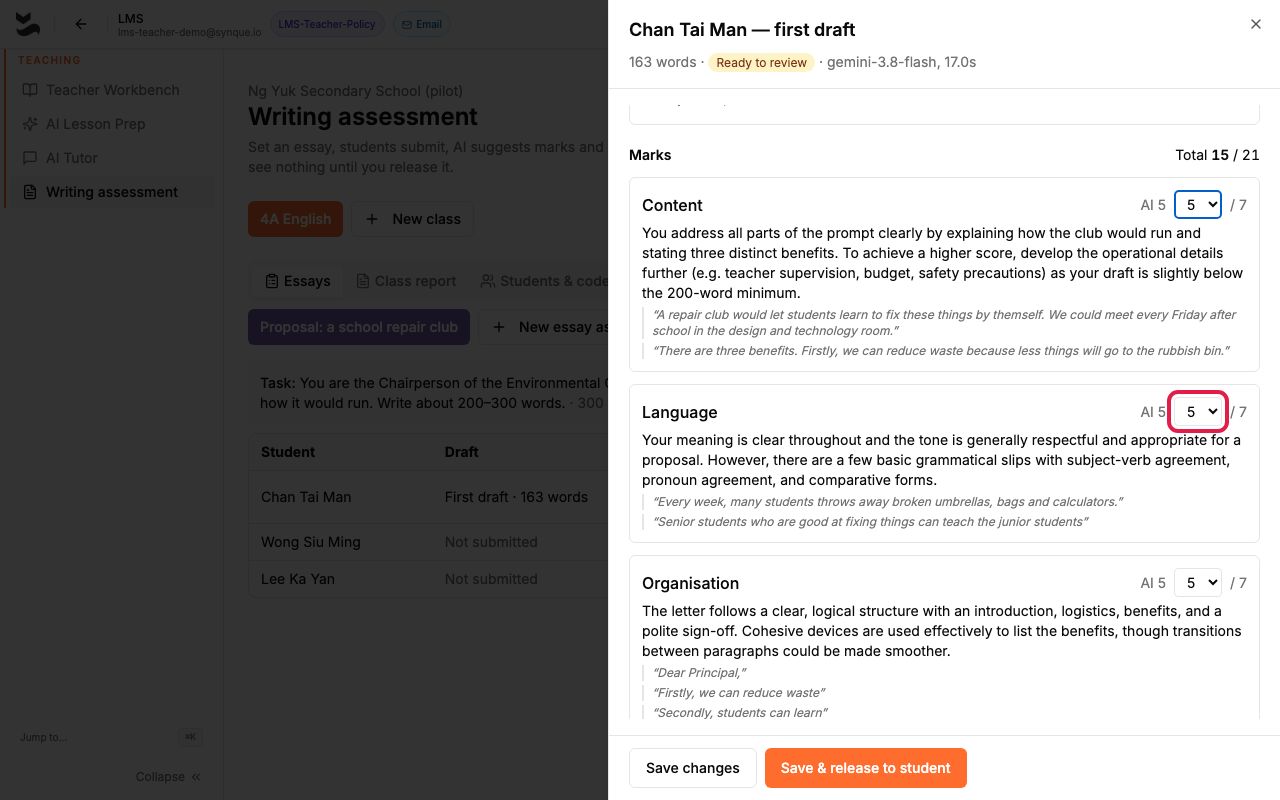
Reviewing an essay: three criteria, each with quotes; the teacher can change the number - 04
Release — only then do students see it
Add your comment and release. The student sees your marks, not the AI’s where you changed them. Every change is kept in the history.
Press Save & release to student
Good to knowPronunciation: the AI’s suggestion is shown to you only. A student sees a delivery mark only if you enter one.
- 05
See where the class is
Class report: who handed in, average marks per criterion, practice started and the most common language issues. Question report: % right per reading or listening question.
Press Class report · Question report
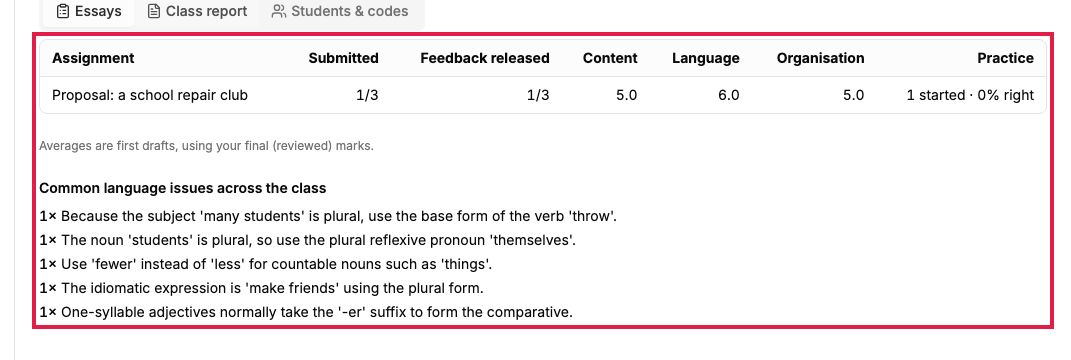
The class report: marks per criterion and common language issues
Questions teachers ask
Why can’t students see their marks straight away?
Because you check them first. Nothing from the AI reaches a student until you release it — the server enforces this, not just the page.
What if the AI is wrong?
Change the mark. The student sees yours; a changed reading mark says “your teacher changed this mark” instead of the AI’s old reason. Every change is kept.
Does the AI write the essay for the student?
No. Planning help is questions, ideas and short phrases, each length-capped; anything essay-like is withheld.
Is pronunciation scored?
Not for students yet: it has not been measured on real Hong Kong students. The AI’s suggestion goes to the teacher only.
Which devices work?
Tested in Chrome on a laptop with a microphone. Safari, iPad and phones are not yet tested.
How accurate is it?
Measured on our own test cases, with the results published — not yet against your teachers’ marks. That is the first thing a pilot measures.
Ready to try it?
Teachers sign in with their school account; students use the code their teacher gives them.